Moving Into 2026 With Your Memories AI Photo Editing – You have likely created plenty of photos featuring natural, happy expressions or various other reactions. But have you ever created a photo that captures a sense of melancholy—one that showcases your Instagram profile and encapsulates old memories? If you want to create an edit like that, this article is for you; we will show you a unique editing method that is also very simple to execute. Following this process will yield excellent results. The details on what to do and how to do it are provided below—simply follow the steps to create your own.
Details Of Moving Into 2026 With Your Memories AI Photo Editing Prompt
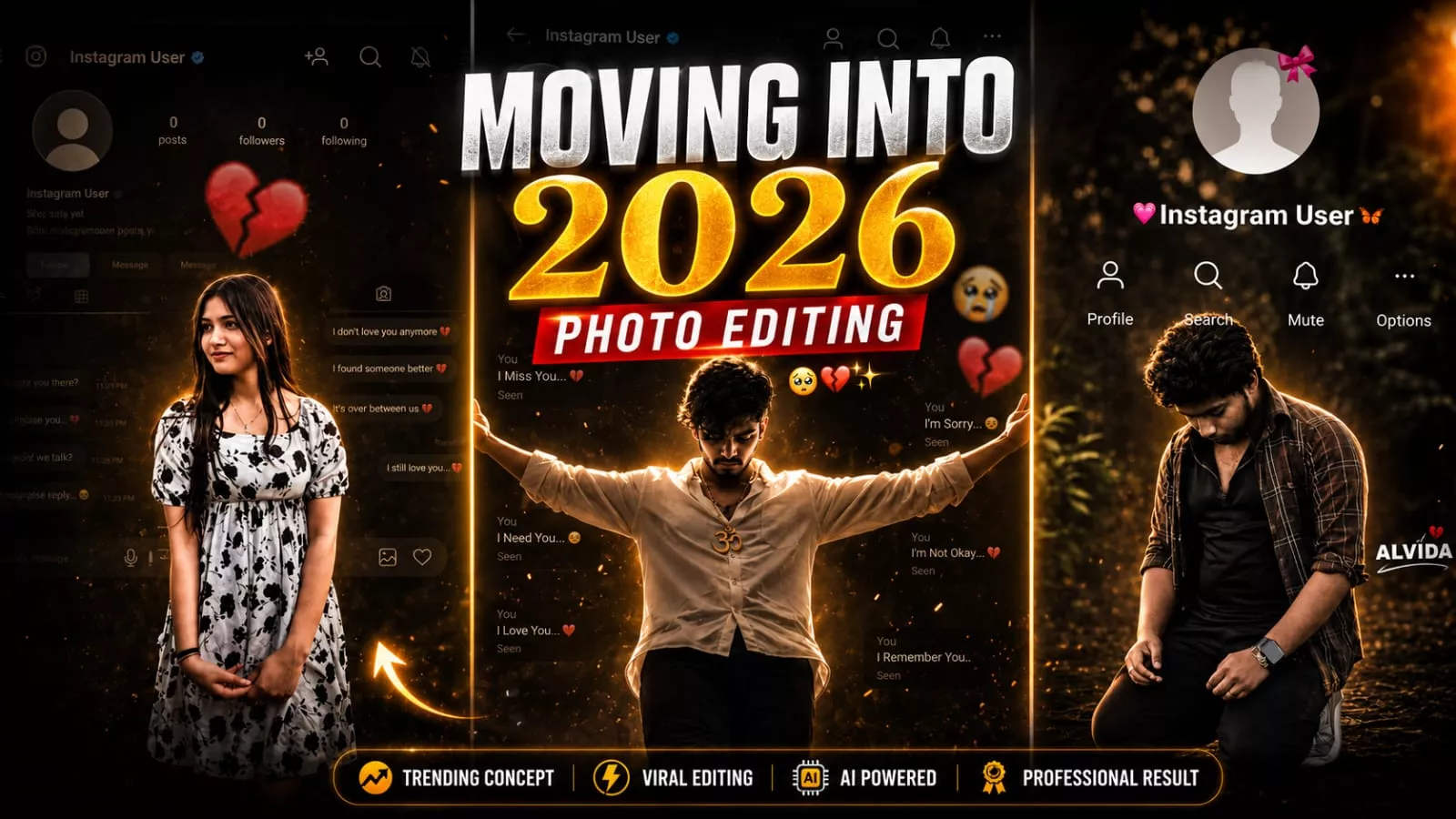
In this edit, you will see something specific: a reference photo of yours will be used. That same photo will be added to the design, styled to look exactly like an Instagram profile—specifically, the view you get when someone has blocked you, where the user appears simply as “Instagram User” and the profile picture is missing. The top section will display your profile details, while the lower part will feature your full photo, followed by a text element. You can customize this text to say whatever you like. That is essentially what this edit entails.
The Key Highlight Of This Photo Editing:
The key highlight of this photo editing style is the perfect execution of a ‘sad’ theme, which makes it highly appealing to people. You will experience a truly cinematic quality, with your face appearing natural and the colors rendered realistically. The image evokes a calm, melancholic mood and is generated in high quality, offering an attractive look perfect for social media. It effectively captures a somber, atmospheric setting.
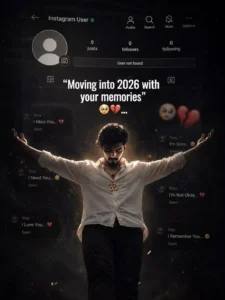
Create a dark, emotional Instagram heartbreak memories edit using the uploaded photo. Keep the person's face, hairstyle, skin tone, body shape, clothes, and pose 100% unchanged. Do not modify identity. Design: • Background should be dark, faded, and slightly blurred. • Add a large semi-transparent Instagram profile interface behind the subject. • Profile picture should appear removed with a default Instagram avatar. • Username: "Instagram User" • Add Profile, Search, Mute, and Options icons. • Use a black and grey color theme with a soft vignette. • Add subtle film grain, motion blur, dust particles, and cinematic lighting. • Place the subject at the bottom center with a soft shadow. Text (large bold white font): "Moving into 2026 with your memories" Below the text add: 🥺💔... Additional effects: • Broken heart emoji 💔 • Sad emoji 🥺 • Faded chat/message overlays in the background. • Instagram aesthetic, nostalgic breakup vibe. • Moody color grading with low saturation. • High contrast, realistic photo edit. • Soft glow around the subject. • Premium viral Instagram reel thumbnail style. • Ultra HD, photorealistic, 4K quality. • No cartoon, no anime, no AI-looking face. • Keep everything natural and cinematic.Ratio 9:16
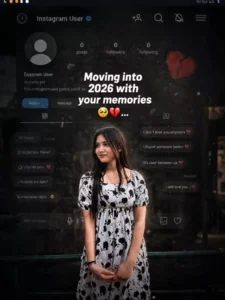
Create a dark, emotional Instagram heartbreak memories edit using the uploaded photo. Keep the person's face, hairstyle, skin tone, body shape, clothes, and pose 100% unchanged. Do not modify identity. Design: • Background should be dark, faded, and slightly blurred. • Add a large semi-transparent Instagram profile interface behind the subject. • Profile picture should appear removed with a default Instagram avatar. • Username: "Instagram User" • Add Profile, Search, Mute, and Options icons. • Use a black and grey color theme with a soft vignette. • Add subtle film grain, motion blur, dust particles, and cinematic lighting. • Place the subject at the bottom center with a soft shadow. Text (large bold white font): "Moving into 2026 with your memories" Below the text add: 🥺💔... Additional effects: • Broken heart emoji 💔 • Sad emoji 🥺 • Faded chat/message overlays in the background. • Instagram aesthetic, nostalgic breakup vibe. • Moody color grading with low saturation. • High contrast, realistic photo edit. • Soft glow around the subject. • Premium viral Instagram reel thumbnail style. • Ultra HD, photorealistic, 4K quality. • No cartoon, no anime, no AI-looking face. • Keep everything natural and cinematic.Ratio 9:16
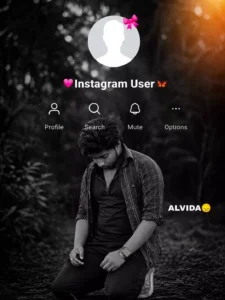
🚀 “Use the provided template image (image_4.png) as the exact layout for this edit. You must maintain the entire interface overlay, including the top circular profile icon (with the pink bow), the ‘Instagram User’ text, all interface icons, and the ‘ALVIDA 😟’ text in their exact original positions. Do not move, alter, or delete any of these overlay elements. Take the person from the new photo provided and place them as the large central figure, replacing the old figure. The new person must be rendered with the exact same framing (half-body or full-body) as in the input photo. Apply a cinematic ‘Black & White’ style, but ensure it is balanced and medium-dark—do not make it overly black or crushed. The subject’s face, features, and clothing must be clearly visible with natural skin tones and balanced contrast, maintaining a high-quality cinematic look without being excessively dark. The background should be a dark, cinematic forest scene, but clearly distinguishable from the subject. Most importantly, the final output must be of the highest possible resolution, crystal clear, sharp, and in Full HD. Maintain the original integrity of the subject.”
Some Importanat Tips For This Editing
If you are doing this kind of editing, here is a helpful tip: keep a few things in mind when creating such photos. First, use high-quality images—including any reference photos. Ensure the lighting in the image is adequate. Once the photo is generated, avoid simply slapping on a filter, as this can make the image look unnatural. Also, keep the background from becoming too cluttered; adding too many elements can cause your subject to get lost. You want to ensure the subject remains the focal point and is positioned effectively. Finally, align the subject’s pose and expression with the mood or emotion of the photo.
How To Create This Ai Image
We have already shared the prompts for creating this photo. Choose the specific prompt you like best and copy it. Next, open ChatGPT, click the plus (+) icon, and upload your reference photo—as we mentioned earlier. Finally, paste the prompt and generate the image; it will yield excellent results—exactly what you are looking for—since this style is currently going viral.